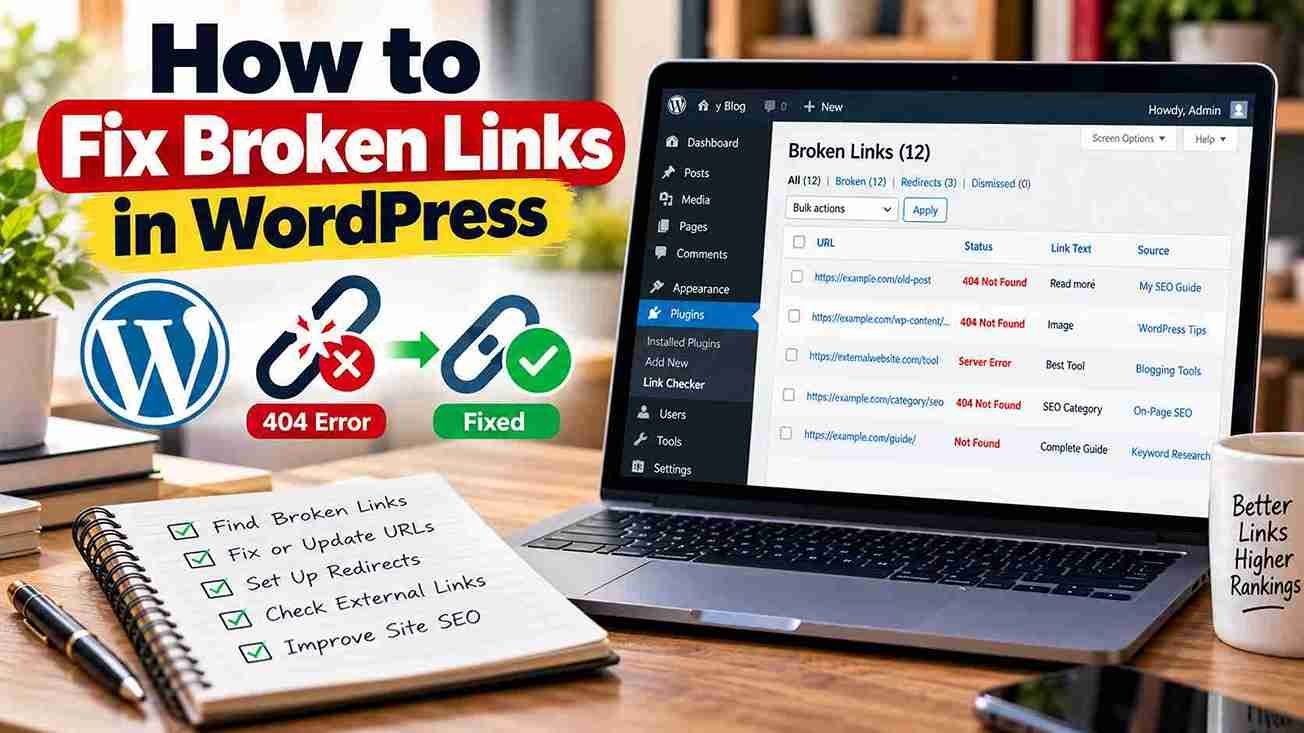
How to Fix Broken Links in WordPress – A Detailed Guide
Broken links are one of those website problems that can remain hidden until a reader clicks an important link and lands on a frustrating error page. You might discover them while updating an old blog post, checking your website’s technical SEO, or reviewing a page that no longer receives the traffic it once did.
For a WordPress website, broken links can appear for several reasons. You may have changed a permalink, deleted an article, moved your website to a new domain, linked to a resource that has disappeared, or simply pasted an incorrect URL. Whatever the cause, leaving these links unresolved creates unnecessary obstacles for visitors.
The good news is that learning how to fix broken links in WordPress does not require advanced programming knowledge. You can find most broken links with a website crawler or a suitable WordPress plugin, identify the correct destination, and repair the problem through the WordPress editor or a redirect.
However, fixing broken links involves more than making every error disappear. You need to understand why each link failed, whether the original content still exists, and which solution best serves the visitor.
This guide explains how to find, diagnose, and fix broken links in WordPress, including internal links, external links, deleted pages, redirect chains, and problems that appear after a website migration.
What Are Broken Links in WordPress?
A broken link is a hyperlink that fails to take a visitor to the intended destination. It may lead to a page that no longer exists, point to an incorrect address, or encounter a server error that prevents the destination from loading.
For example, imagine that you published an article about WordPress SEO and linked to another guide at:
https://example.com/wordpress-seo-guide
Later, you changed the destination URL to:
https://example.com/wordpress-seo
If the original URL no longer works and you have not configured a suitable redirect, visitors following the old link may see a 404 error.
Broken links can occur on your own website or on external websites. Understanding the difference helps you choose the right fix.
Also Read: Covers broken links, redirect chains, and other technical SEO checks
Internal broken links
Internal links connect one page on your website to another page on the same website. An internal broken link occurs when one of these links points to a destination that no longer works.
Common examples include:
- A blog post linking to an article that you deleted.
- A navigation menu pointing to an outdated page URL.
- An old article linking to a page whose permalink has changed.
- A category page containing links to removed posts.
- A button pointing to an incorrect internal URL.
Internal broken links deserve particular attention because you control both the page containing the link and, in most cases, the destination.
External broken links
External links point from your WordPress website to another website. They become broken when the destination is unavailable or the URL no longer resolves correctly.
For example, an article may link to a research report, plugin documentation page, government notification, or third-party tutorial that has been removed.
You generally cannot repair the destination on someone else’s website. Instead, you can update your own link to a current, relevant resource or remove it when no suitable replacement exists.
Broken links versus 404 errors
A 404 error means the server could not find the requested resource. A broken link may lead to a 404 page, but not every 404 URL represents a broken link on your website.
A visitor might manually enter an incorrect address, follow an outdated external link, or request a page that was intentionally removed. These situations can all produce 404 responses.
That distinction matters because the right solution depends on the cause. If a valid article was accidentally deleted, restoring it may be appropriate. If a page was deliberately retired and has no equivalent replacement, leaving it unavailable may be perfectly reasonable.
Also Read: Explains internal link structure, orphan pages, and fixing broken internal links
Why You Should Fix Broken Links on Your WordPress Website
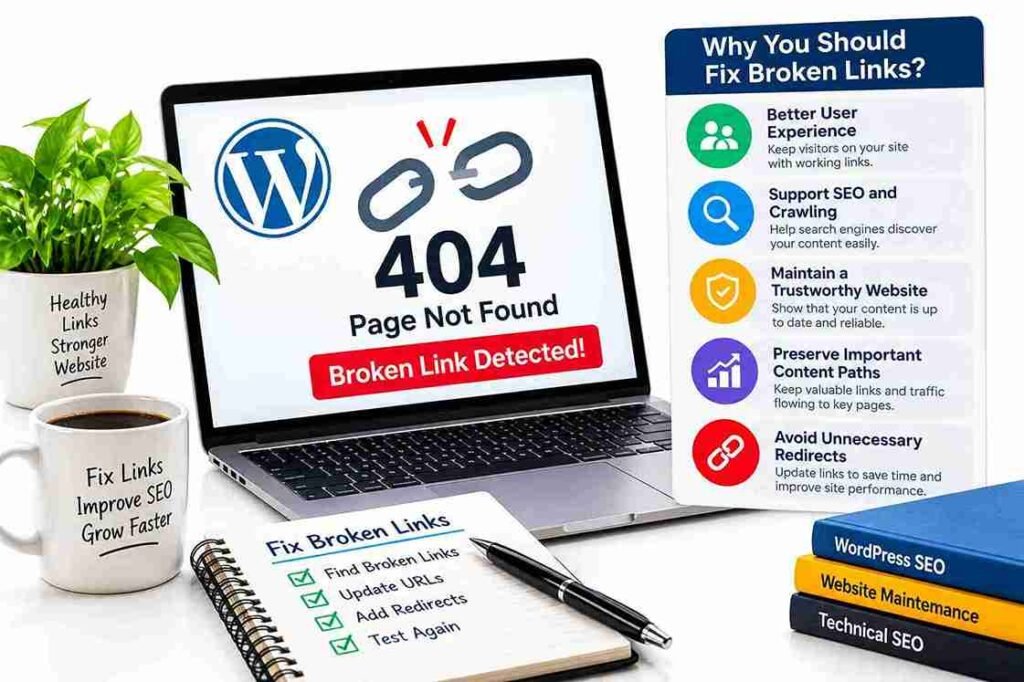
Not every broken link creates a major SEO problem, and not every 404 error requires a redirect. Nevertheless, regularly checking links is an important part of website maintenance.
1. Improve the visitor experience
Imagine reading a tutorial that promises to explain how to configure a WordPress plugin. You click the link expecting instructions, only to discover that the page is missing.
You may return to the search results, abandon the article, or lose confidence in the website.
A single broken link might be a minor inconvenience. A website filled with outdated links can make the entire site feel neglected.
Fixing broken links helps visitors move smoothly between tutorials, supporting resources, product pages, and other useful content.
2. Support website crawling and content discovery
Search engines use links to discover URLs and understand relationships between pages. Google recommends making links crawlable and using descriptive anchor text that clearly communicates the destination.
If an important article has no working internal links pointing to it, visitors and search engines may have more difficulty discovering it through your site’s link structure.
Repairing broken internal links can restore useful paths between related articles. It is particularly valuable when a broken link appears in a navigation menu, a major category page, or a frequently visited tutorial.
3. Preserve useful paths to important content
Suppose an established article links to a newer tutorial that explains a topic in greater detail. If the destination URL changes without updating the old link or configuring a suitable redirect, readers may no longer reach that resource through the original path.
Fixing the link restores that connection.
When the destination has genuinely moved, a permanent redirect can also help visitors who use the old URL. The objective is to preserve access to the intended content, not simply to remove an error from a report.
4. Maintain a trustworthy website
Outdated links can make otherwise useful content appear neglected. This is especially noticeable on tutorials, product reviews, resource pages, and articles that recommend tools or services.
Reviewing links as part of regular content maintenance helps ensure that the resources you recommend are still available and relevant.
5. Avoid unnecessary redirect paths
Sometimes a link still works but sends visitors through one or more redirects before reaching the final destination.
For example:
Old URL → Intermediate URL → Current URL
This is not necessarily a broken link, but it may be an unnecessary detour. When practical, update the original link to point directly to the final URL.
A redirect is useful when an address has changed. The unnecessary part is retaining outdated links when you can update them.
Also Read: Supports readers learning how to organize SEO content and related pages.
How to Find Broken Links in WordPress
Before fixing broken links, you need to identify them. The most suitable method depends on the size of your website, how often you publish content, and whether you prefer a WordPress plugin or an external auditing tool.
Method 1: Use a broken-link-checking plugin
A broken-link-checking plugin can help identify links that need attention from within your WordPress workflow. Depending on the plugin, its features may include checking internal and external URLs, reporting errors, locating the page containing a link, or allowing you to edit a URL directly.
Follow these steps:
- Sign in to your WordPress dashboard.
- Open Plugins → Add New Plugin.
- Search for a broken-link-checking plugin.
- Review its compatibility, maintenance history, permissions, and current reviews.
- Install and activate the plugin if it meets your requirements.
- Configure its checking options according to your website’s needs.
- Run a scan and review the reported links.
- Open each result to identify the source page and destination URL.
- Fix the problem in the editor or through an appropriate redirect.
- Run another check to confirm the correction.
Important: Plugin names, availability, features, and pricing can change. Check the current WordPress plugin directory before installing a tool. Do not assume every plugin checks all links in real time or supports the same features.
Should you keep a link-checking plugin active permanently?
Not necessarily. Continuous checking can be convenient, but it may add work for your hosting environment, depending on how the plugin operates and how large your site is.
For a small blog, occasional scans may be sufficient. A large content website may benefit from scheduled external crawls or a dedicated auditing workflow.
Choose a method that gives you reliable reports without creating unnecessary server load. If you notice unusually high resource usage after enabling a plugin, review its settings and consider running checks less frequently or using an external crawler.
Method 2: Use an external website crawler
An external SEO crawler can inspect a website’s links and report destination URLs that return errors. This is particularly useful for larger WordPress websites with hundreds or thousands of posts.
A typical audit works as follows:
- Open a website-crawling tool.
- Enter your website’s homepage.
- Start a crawl of the website.
- Allow the tool to discover and test links within its configured scope.
- Filter the results for client or server errors, such as 404 and 5xx responses.
- Review the source URL, destination URL, and response status for each issue.
- Export the report if you need to organize repairs across multiple articles.
Remember that crawl results are not always conclusive. A destination may temporarily block automated requests, return a different response to a crawler, require authentication, or fail intermittently.
Verify suspicious results in a browser before making changes.
Method 3: Check Google Search Console
Google Search Console is useful for understanding how Google discovers and indexes your website. Its indexing reports can help you investigate URLs that Google could not access or index as expected.
However, Search Console is not a complete broken-link checker. It does not provide a comprehensive list of every broken hyperlink on your site, and a reported 404 URL does not automatically mean that one of your articles contains a broken link.
Use Search Console alongside a site crawl:
- Review indexing reports for relevant URL errors.
- Inspect an important URL when you need to investigate its status.
- Compare affected URLs with your site’s internal-link crawl.
- Check whether a missing URL is linked from another page on your website.
- Investigate the reason for the error before deciding on a fix.
This distinction prevents unnecessary redirects and helps you focus on genuine website issues.
Method 4: Check links manually
Manual checking is suitable when you have found only a few broken links or want to verify a particular URL.
Open the page containing the link, click it, and observe what happens. If it fails, copy the destination URL and open it separately.
Check whether the URL contains a typo, an incorrect path, an obsolete slug, or an unexpected redirect.
Manual checking becomes impractical for large websites, but it remains valuable for confirming suspicious results before making changes.
Also Read: Provides broader context about SEO practices for WordPress websites
How to Fix Broken Links in WordPress Step by Step
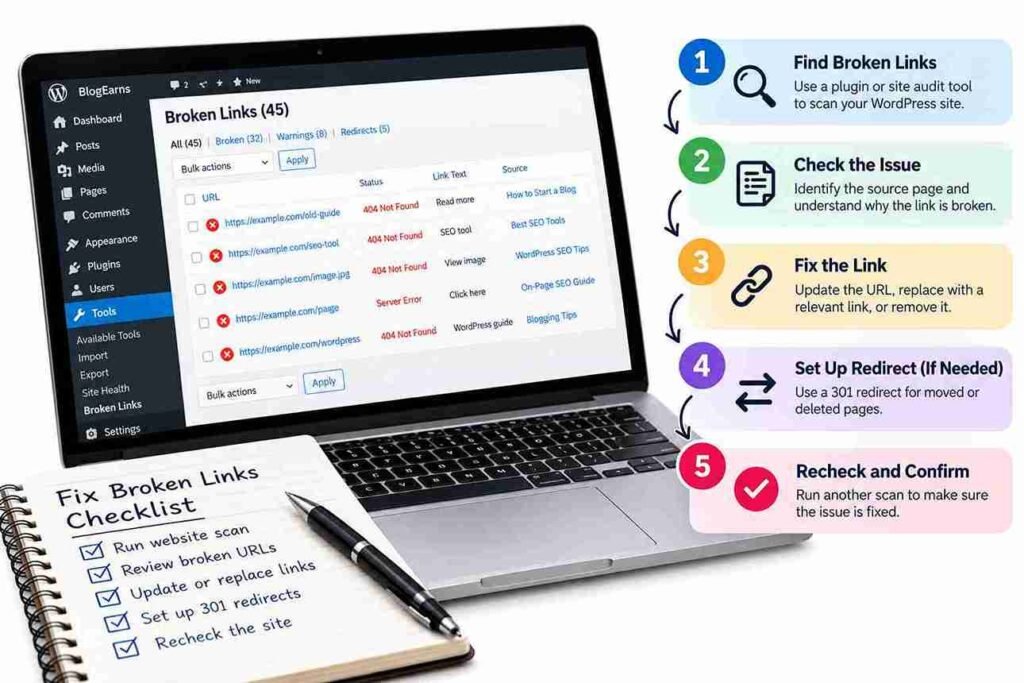
Once you have identified a broken link, choose the correction based on what happened to the destination.
Step 1: Find the page containing the broken link
A broken-link report should ideally show two pieces of information:
- Source URL: The page containing the link.
- Destination URL: The page or resource the link points to.
For example:
| Field | Example |
|---|---|
| Source URL | example.com/wordpress-seo-tips/ |
| Broken destination | example.com/seo-plugin-guide/ |
| Problem | Destination returns 404 |
| Recommended action | Verify the intended destination |
Open the source page in WordPress and find the relevant link. If the page is long, search for the link text or use the editor’s link controls.
Do not immediately delete the link. First, determine whether the intended destination has moved, been removed, or was entered incorrectly.
Step 2: Identify the correct replacement URL
Check whether the destination page still exists under a different URL.
You can search your WordPress posts and pages, review the website’s sitemap, or search your content management system for the article title.
If the content has moved, use its current canonical URL where appropriate. If the content was deleted, look for a genuinely relevant replacement.
For example, if a broken link points to an old guide about WordPress SEO and you have updated that guide at a new address, the new URL may be the correct replacement.
If no equivalent page exists, do not invent a replacement simply to make the report clean.
Step 3: Edit the broken link in the WordPress editor
For most internal-link problems, updating the link in the original article is the simplest solution.
- Open Posts → All Posts or Pages → All Pages.
- Find the source article.
- Select Edit.
- Locate the broken link in the content.
- Select the linked text or linked element.
- Open the link control.
- Replace the outdated URL with the correct destination.
- Save or update the post.
- Open the published page and click the link to test it.
The WordPress block editor includes link controls for adding, editing, and removing links. You can also use the editor’s keyboard shortcut for link insertion and editing where supported. See the official WordPress guide to adding and editing links.
For linked images or buttons, check the destination in the block settings rather than looking only for linked text.
Step 4: Remove links that no longer provide value
Sometimes the destination has disappeared and no suitable replacement exists.
In that case, removing the link may be better than sending visitors to an unrelated article.
For example, if an old article recommends a discontinued service and there is no equivalent resource that serves the same purpose, you could remove the outdated recommendation or rewrite the relevant paragraph.
Keep the surrounding text useful. Simply deleting a link without reviewing the sentence can leave a paragraph confusing or incomplete.
Step 5: Update the article and clear relevant caches
After changing a link, save or update the post.
If your website uses page caching, a content delivery network, or a caching plugin, the public page may temporarily show an older version. Clear the relevant cache if the change does not appear.
Then open the published page in a fresh browser tab and test the link again.
For important pages, verify the destination on both desktop and mobile. A link may work correctly in one context but be difficult to tap or use in another.
Step 6: Run another scan
After making repairs, repeat the original check or run a new crawl.
Confirm that:
- The source page contains the correct destination URL.
- The destination loads successfully.
- The link does not lead through an unnecessary redirect chain.
- The replacement is relevant to the surrounding content.
- The report no longer flags the issue, if the tool supports that check.
A successful save does not guarantee that the problem has been fixed. The destination itself may still be unavailable, so testing matters.
How to Fix Broken Links When a WordPress Page Has Moved
Sometimes, the broken link is only a symptom of a URL change. You may have renamed a post, changed its permalink, reorganized categories, or moved the website to a different domain.
In these situations, correcting links inside your website is important, but you may also need a redirect.
When should you use a 301 redirect?
A 301 redirect tells browsers and search engines that a URL has moved permanently. It can help visitors who follow old bookmarks or external links reach the new address.
Consider using a permanent redirect when:
- You have changed a post’s permalink and the old URL should lead to the updated article.
- You have consolidated two similar articles into one relevant replacement.
- You have moved content to a new domain or URL structure.
- A page has been replaced by another page that satisfies substantially the same user need.
For example:
example.com/old-wordpress-guide/
redirects to:
example.com/wordpress-guide/
If the replacement is genuinely equivalent, the redirect preserves a useful path to the content.
However, do not redirect every broken URL to your homepage. If a visitor expects a specific tutorial but lands on a general homepage, the experience can be confusing. Redirect to the most relevant replacement, or leave the unavailable URL as a 404 when no suitable replacement exists.
How to create a redirect in WordPress
The precise steps depend on your hosting environment and redirect tool. A redirect plugin may provide a dashboard where you enter the old URL and its destination.
A typical workflow is:
- Install or open a trusted redirect plugin, if you need one.
- Create a new redirect rule.
- Enter the old path, such as
/old-wordpress-guide/. - Enter the new destination, such as
/wordpress-guide/. - Select a permanent redirect when the move is genuinely permanent.
- Save the rule.
- Test the old URL in a browser.
- Confirm that it reaches the intended destination without creating a loop or unnecessary chain.
You can also configure redirects at the server or hosting level. That may be suitable for larger migrations or websites with many URL changes, but it requires greater care.
Before changing server configuration, keep a backup and understand how your hosting stack handles redirects.
Update internal links even when redirects work
A redirect can keep an old URL accessible, but it does not mean you should leave every internal link pointing to that old address.
If you control the source article, update it to link directly to the final destination whenever practical.
This reduces unnecessary redirect hops and makes your site’s link structure easier to maintain.
How to Fix Broken External Links
External links require a slightly different approach because you cannot usually change the destination website.
Start by opening the broken destination in a browser. Determine whether the problem is temporary, whether the page has moved, or whether the resource has been permanently removed.
Use the following approach:
If the page has moved: Find its current URL and replace the old link.
If an equivalent resource exists elsewhere: Link to a credible replacement that serves the same purpose.
If the destination is temporarily unavailable: Recheck it later before removing a useful reference, especially if the website is experiencing an outage.
If the resource has disappeared permanently: Remove the link or rewrite the paragraph if no suitable replacement exists.
If the destination redirects to an unrelated page: Verify that the redirect is legitimate before keeping the link.
For example, an article about WordPress security might contain a link to an official plugin documentation page. If that documentation moves, look for the current documentation from the plugin’s developer rather than replacing it with an unrelated blog post.
For an SEO tutorial, Google’s own documentation is a suitable starting point for guidance on crawlable links and descriptive anchor text: Google Search Central: Link Best Practices.
Common Causes of Broken Links in WordPress
Understanding why links break helps you prevent the same problems from returning.
Changing permalinks
Changing a post’s slug changes its URL. Existing internal links, bookmarks, and external references may continue to use the previous address.
Before changing an established permalink, consider whether the new URL is necessary. If you change it, update links you control and configure an appropriate redirect where the old address should remain accessible.
Deleting posts or pages
Removing content without reviewing incoming links can leave other pages pointing to a missing destination.
Before deleting an article, check whether other important pages link to it. Decide whether to restore it, consolidate it into another resource, redirect it to a relevant replacement, or leave it unavailable.
Website migration
Moving from HTTP to HTTPS, changing domains, redesigning a website, or reorganizing URL structures can create widespread link problems.
Use a migration checklist that covers internal links, redirects, canonical URLs, sitemaps, navigation, and important external references. After the migration, crawl the site and investigate any unexpected errors.
Typing or copying incorrect URLs
A missing character, extra slash, incorrect slug, or copied URL with the wrong domain can break a link.
Using WordPress’s internal search to select an existing post or page can reduce these mistakes. Still, verify the published link after saving.
External websites removing content
A website you reference may delete a page or reorganize its content without notifying you.
You cannot prevent every external link from breaking. Periodic audits help you identify outdated references and replace them when a reliable alternative exists.
Redirect loops and server problems
Not all link failures come from deleted pages. Redirect loops, server outages, permission restrictions, and configuration errors can also prevent a destination from loading.
A 5xx response, for example, usually indicates a server-side problem rather than proof that the page has permanently disappeared. Check the response again before making lasting changes.
WordPress’s official Common Errors documentation is useful if a link problem appears to be connected to permalink or server configuration issues.
Best Practices for Preventing Broken Links
Fixing existing issues is only half the job. A simple maintenance routine can reduce the number of broken links that accumulate over time.
Check links before publishing
Before publishing a new article, test important links in the introduction, main body, call-to-action sections, and conclusion.
Pay special attention to:
- Links to other articles on your website.
- Affiliate links and product pages.
- Official documentation and research sources.
- Download links and resource pages.
- Buttons, images, and navigation elements.
Review links when updating older content
Content updates are a natural opportunity to check links. When revising an older article, verify its important destinations and replace obsolete references.
This is especially useful for tutorials about software, plugins, themes, and online tools, where interfaces and documentation can change over time.
Keep a redirect record
If you change many URLs, maintain a list of old and new destinations. A redirect map is particularly useful during website migrations, domain changes, and major content reorganizations.
Record the old URL, new URL, reason for the change, and whether the redirect has been tested. This makes later troubleshooting much easier.
Avoid unnecessary URL changes
A descriptive URL can be useful, but changing an established permalink solely to make a minor wording improvement may create extra maintenance work.
Before changing a URL, consider its current usefulness, incoming links, search visibility, and whether the change solves a meaningful problem.
Schedule periodic audits
The right frequency depends on how often your website changes. A site publishing daily may need more frequent checks than a small site that rarely changes.
As a starting point, consider:
- Checking important navigation and high-traffic pages regularly.
- Running a broader crawl monthly or quarterly.
- Auditing links after a redesign or migration.
- Rechecking links after deleting or consolidating content.
- Reviewing important external references when updating articles.
Treat this as a practical starting point, not a universal SEO rule. Adjust the schedule to match your site’s publishing activity and risk.
Frequently Asked Questions
| 1. How do I fix broken links in WordPress? |
|---|
| Find the broken link using a plugin, website crawler, or manual check. Identify the page containing it, determine whether the destination has moved or disappeared, and then update the URL, remove the link, restore the content, or create a relevant redirect. Finally, test the link again. |
| 2. What is the easiest way to find broken links in WordPress? |
| A broken-link-checking plugin may be convenient for a smaller website because it works within your WordPress workflow. An external website crawler is often useful for auditing larger sites. Whichever method you choose, verify suspicious results before making changes. |
| 3. Do broken links hurt SEO? |
| Broken links can interfere with navigation and interrupt the paths connecting related pages. Broken internal links may also make important content harder to discover through your site’s link structure. However, a broken link does not automatically cause a ranking penalty, and an ordinary 404 response is not inherently an SEO problem. The impact depends on the URL, its purpose, and the circumstances. |
| 4. Should I redirect every 404 page in WordPress? |
| No. Redirect a URL when the content has moved or a genuinely relevant replacement exists. If the content has been permanently removed and there is no equivalent destination, returning a 404 or 410 status may be appropriate. Redirecting unrelated URLs to the homepage is generally a poor substitute for a relevant destination. |
| 5. How do I fix broken internal links without a plugin? |
| Open the article containing the broken link in the WordPress editor, select the link, replace its destination with the correct URL, and update the article. Test the published page afterward. This works well when you already know which links need correction. |
| 6. Can broken external links be fixed? |
| Yes, although you generally cannot repair the external website itself. Find the current destination if the page has moved, replace it with a credible and relevant resource, or remove the link if the resource no longer exists and no suitable alternative is available. |
| 7. How often should I check for broken links? |
| The ideal frequency depends on how frequently your website changes. Monthly or quarterly audits can be a reasonable starting point for many blogs, with additional checks after migrations, redesigns, and major content updates. High-change websites may need more frequent monitoring. |
| 8. Can a WordPress plugin automatically fix all broken links? |
| Some plugins offer automatic replacement or redirect features, but no tool can reliably determine the best destination for every broken URL. An automated replacement may send visitors to unrelated content or create redirect loops. Review suggested fixes before applying them in bulk. |
| 9. What is the difference between a broken link and a redirect? |
| A broken link fails to reach its intended destination. A redirect sends a request from one URL to another. A redirect can be the correct fix when content has moved, but a link that redirects unnecessarily may still benefit from being updated to point directly to the final URL. |
| 10. Do I need a plugin to manage broken links? |
| No. You can edit links manually and use external crawling tools to identify problems. A plugin can make the process more convenient, but it is not a requirement for maintaining a healthy WordPress website. |
Conclusion
Learning how to fix broken links in WordPress is an essential part of maintaining a reliable website. Broken links can appear when you change permalinks, remove content, migrate a website, or reference external resources that later disappear.
The solution is to identify the problem, investigate the destination, and choose the right correction. Update the URL when the destination has moved, restore content when it should still exist, create a relevant redirect when appropriate, and remove links that no longer serve a useful purpose.
For a website such as BlogEarns.com, make broken-link checks part of your wider technical SEO and content-maintenance routine. Combine a site crawler or suitable plugin with manual verification, and review important links whenever you update older articles.
The goal is not to eliminate every 404 response at any cost. It is to ensure that the links you publish help readers reach the information they expect, while keeping your website’s structure clear, useful, and easy to navigate.